Anypoint Studio Frozen at the Workspace Launcher
After upgrading both Java and MuleSoft Anypoint Studio on macOS, I encountered a startup issue where the Workspace Launcher appeared but did not respond to keyboard or mouse input.
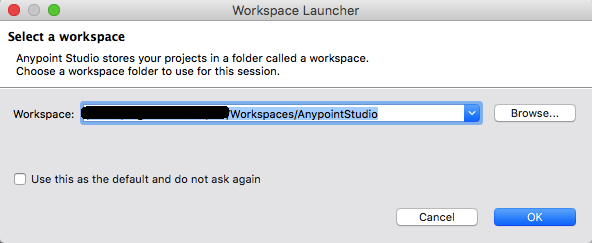
In this environment, the problem appeared after moving from Java 7 to Java 9. Launching the Studio version used at the time with Java 7 restored normal behavior.
Version context: This article describes a compatibility issue involving an older Eclipse-based Anypoint Studio release and Java 9. It should not be interpreted as a recommendation to use Java 7 today. Current Anypoint Studio releases have their own supported-JDK requirements, which should be followed instead.
Test with an Explicit Java Runtime
First identify the Java 7 installation path. Then open Terminal, navigate to the application bundle, and launch Anypoint Studio with an explicit VM path:
AnypointStudio.app/Contents/MacOS
The original launch command used the -vm option with the Java 7 bin directory. If the Workspace Launcher works with that runtime, it confirms that the startup issue is related to the Java runtime selection rather than the workspace itself.
Configure the Runtime Persistently
Instead of launching from Terminal every time, the runtime path can be configured in the Studio .ini file for the version covered by this article.
- In Finder, locate
AnypointStudio.app. - Select Show Package Contents.
- Open the Contents → Eclipse directory.
- Edit
AnypointStudio.ini. - Add the
-vmconfiguration in the correct location before-vmargs. - Use the complete Java installation path rather than relying on
JAVA_HOME.
The configuration used in the original environment is preserved here:
-vm
<Java_7_Location>/bin
Takeaway
When an Eclipse-based IDE freezes before a workspace is fully loaded, verify the IDE/JDK compatibility matrix before assuming the workspace is corrupt. Explicitly launching with a known-compatible JDK is a useful diagnostic step.